
Start with 300 bonus credits if you go Premium in the first 72 hours. See plans

For gaming PCs

Optee

Tune Windows, and be able to put it back.

  • Free, for good
  • 127 tweaks, each reversible
  • Nothing runs without your click

Optee is a Windows 11 tune-up for gamers that never forgets what it changed. Before it touches a setting it writes down the old value, so every single tweak can be put back.

Choose from 127 tweaks for FPS, input lag and everyday comfort, start from one of eight presets, or switch on Game Mode while you play. It's free, for good, with your Yumee account.

Why might Windows or an antivirus warn about this? Last checked on VirusTotal: 22 October 2026

Last VirusTotal check

22 October 2026 4 days ago

55 of 59 scanners found nothing in version 3.2.1

Microsoft Defender: clean

The 4 that did not guess from how the file is packed, not from anything they found inside (see below). The report shows the name each one gives.

Open the full VirusTotal report

Is Optee safe?

Yes. Optee does what this page describes and nothing more: it only shares your sign-in with yumee.org, nothing runs until you press a button, and every update is checked against its fingerprint before it replaces anything. You can remove it any time in Settings, Apps.

Then why does a scanner complain?

Because it is new. An app without a paid code-signing certificate starts with no reputation, and a few scanners distrust any unknown program that comes as one file and installs and updates itself. That is a guess from the shape of the file, not something harmful found in it, and it fades as more people use the app.

What the scanners notice in Optee

  • One file: the whole app (about 140 MB) is packed into a single .exe by .NET single-file publishing (build.ps1, PublishSingleFile). Scanners see a small starter with a large "overlay" they cannot look inside.
  • Not signed yet: without a code-signing certificate Windows cannot show who made it, so its reputation starts at zero.
  • Runs as administrator: tuning Windows needs it, so the app asks for it at start (app.manifest, requireAdministrator).
  • Changes the system: registry values, services and boot options, and only if you switch them on, the hosts file and Defender exclusions. Each change is written to a journal first so it can be undone (Tweaks, Journal/RevertEngine.cs).
  • Runs scripts the way malware often does: some fixes and Boost-Ups hand a PowerShell script over with -EncodedCommand, in memory and never written to disk (ScriptBoostUp.cs, Fixes.cs). The scripts are fixed parts of the app, not downloaded.
  • Installs and updates itself like the other Yumee apps (YumeeInstall.cs, YumeeUpdate.cs).

Windows stopped it. What now?

On the blue SmartScreen screen choose More info, then Run anyway. If Defender moved it to quarantine, restore it in Windows Security, Protection history, once you have checked the fingerprint below.

How do I know my file is the real one?

Compare its fingerprint. In PowerShell, Get-FileHash on the downloaded file must print exactly this:

SHA-256 of Optee-3.2.1.exe f4309215aec4d8f9d8a53a6f7ff1fb22cea137151843a2f153e46def5bfa6204
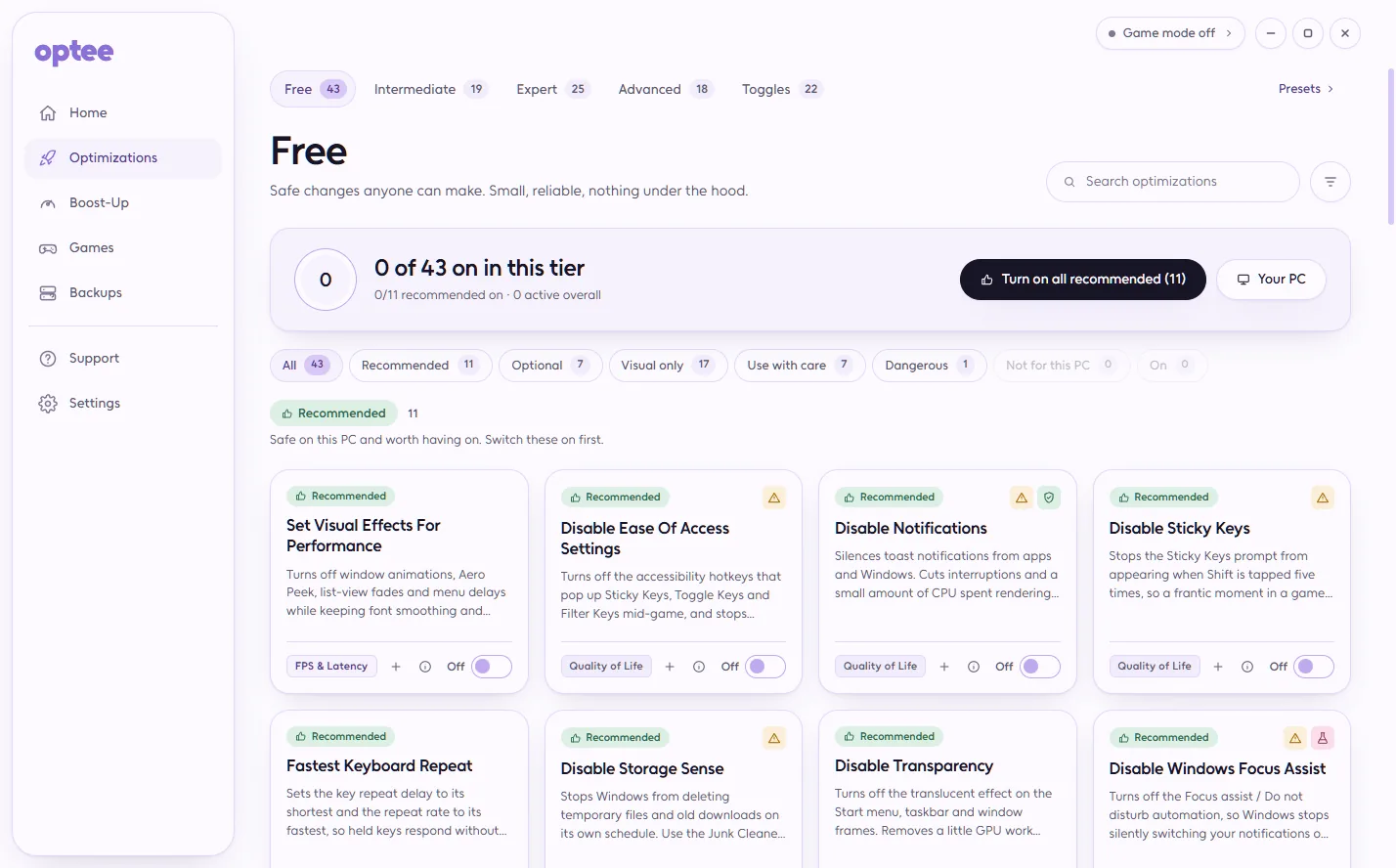
Why you'll love Optee

  • Remembers everything

    The old value, or the fact that there wasn't one, is saved before anything changes. That's why every card can be undone.

  • Go as far as you like

    Five levels, from safe everyday tweaks to expert ones. Nothing above the level you chose is ever applied for you.

  • Game Mode

    Quietens background services and apps while you play, then puts back exactly what it changed.

  • Finds your games

    Scans eight launchers, with ready-made config profiles for ten popular titles.

  • A way back, always

    One elevated command replays the journal backwards, even if Optee won't start and even if you're signed out.

  • No snake oil

    Tweaks that do nothing are labelled as myths. No made-up FPS promises.

A snappier, quieter PC, with the undo button always within reach.

How it works

  1. Take a backup

    First screen, one button. Do it before anything else; the app keeps asking until you have.

  2. Look at your PC

    Optee reads the hardware and marks which cards are worth it on this machine.

  3. Turn things on

    A card, a preset or "all recommended". Each says what it does and whether it wants a reboot.

  4. Change your mind freely

    Every card reverts on its own, a preset reverts as a whole, and the journal survives a reinstall.

What it costs

Free with your account. Nothing it does costs credits.

Plans and credit packs

What it needs

  • Windows 11 (most of it works on 10), 64-bit
  • Administrator rights — it changes the system, so it asks for them at start
  • A free Yumee account: Optee costs nothing and spends no credits
  • One small Windows component, which it installs for you if your PC does not have it yet

Download it and open it once: it installs itself, with a shortcut in the Start menu and on the desktop. Sign in with your Yumee account and it gets what it needs with one progress bar. It keeps itself up to date, and your files stay on your PC.

What's new in Optee

  1. Version 3.2.1

    • Optee opens again: 3.2.0 stopped at start with a message that its data folder could not be created
    • Optee no longer asks whether the Snipping Tool or another Windows screen is a game
  2. Version 3.2.0

    • Switching a card off puts back exactly what your PC had, and if Windows refuses a step, Optee says so and keeps it listed
    • Scheduled Boost-Ups run from a protected copy of Optee; games, launchers and links always open with your normal rights
    • Cleaners stay inside their own folders, keep your Recycle Bin, shader caches and pins by default, and wait while you play
    • Cards that did nothing on Windows 11 or could harm your PC are gone, and the recommended set has no cards that fight
    • Game Mode leaves voice chat and streaming alone; game settings and Steam launch options change only Optee's own lines
  3. Version 3.1.5

    • Optee checks for its own new version every 15 minutes while it runs and tells you in the tray when one is ready
  4. Version 3.1.4

    • The top of the Optee window, across the menu and the Game Mode bar, now moves the window from any empty spot
    • Optee shows its version beside its name in the menu
  5. Version 3.1.3

    • Optee tells Windows to redraw its shortcut and taskbar icon whenever a new build replaces the old one
Earlier versions
  1. Version 3.1.2

    • If Yumee can't be reached, Optee now opens when it confirmed your account in the past three days, instead of closing without a word
    • Without a recent check, Optee shows the sign-in window and says why, so you know to connect
    • A blocked update download now asks you to try again rather than saying your account can't have the update
  2. Version 3.1.1

    • A new tray icon; hover it or open its menu to see whether Game Mode is on
    • The same icon on Optee's window, taskbar button and Start menu entry
  3. Version 3.1.0

    • Optee installs itself on first open and shows up in the Start menu and in Settings → Apps
    • Each time you open Optee it checks for a new version and updates in one click
    • Uninstalling keeps your backups and the record of Optee's changes, so a reinstall can still undo them
    • Plainer setup messages, with the details one click away
  4. Version 3.0.0

    • Lighter pages, with the sign-in, setup and tray windows restyled to match
    • Safer undo: only changes Optee itself made can be reverted
    • Optee's download on yumee.org now needs an account that can use Optee
  5. Version 2.2.0

    • Unlock Optee once with Yumee credits
    • Settings shows your plan, whether Optee is yours, and your credits
    • Nothing is downloaded or installed before you sign in
  6. Version 2.1.0

    • Sign in with your Yumee account: approve a code, no password typed into Optee
    • Optee opens offline for up to 72 hours after your account was last checked
    • Optee's pages and sign-in window in a fresh look
  7. Version 2.0.0

    • Boost-Ups: cleanup and speed tools you can run now or on a schedule
    • Install apps from one catalogue
    • Game Mode, and a games library from your launchers with settings profiles for ten games
    • Every optimization is rated for your PC, starting with a Your PC screen
    • Mouse Precision and Latency preset, and a tray menu with a Game Mode switch
  8. Version 1.0.0

    • 119 optimizations in five tiers, each of which can be turned off again
    • Backups with a Windows restore point, and one button to revert everything
    • Presets, including ones you can share with a code
    • A Home dashboard with your optimizations and a performance checklist

Questions about Optee

Can it break my Windows?

Every change is journaled before it is made and every card reverts. Take the backup it asks for on the first screen anyway, and stay on the level you understand.

Does it cost anything?

No. Optee is free for good with a Yumee account, on every PC you sign in on. There is nothing to unlock and no credits to spend.

What if it will not start?

Recovery does not need the app or the account: one elevated command undoes the last session from the journal.

Will it give me more FPS?

Some cards help some machines, and the app says which ones are worth it on yours. The ones that do nothing are marked as myths instead of being sold to you.